LD Persona blond woman Dreaming of OOO

Carry Over Staff Leave Automatically at Year-end

Protect unused leave with automation

Don't let earned leave go to waste, and don't spend hours manually calculating leave entitlement.

Leave Dates makes carry over simple, accurate, and automates it all.

LD Persona man with phone

The problem with year-end leave

If your business still uses spreadsheets to manage leave, the subject of leave carry over at the end of the year will look one of two ways:

  1. Employees lose leave they’ve earned 
    Morale drops, people feel short-changed, and you risk ending up out of line with your own policy.


  2. You have to calculate and input data manually 
    You trawl through spreadsheets, recalculate balances, and roll days over by hand - right when you’re busiest. 

Either way, it’s stressful, time-consuming, and easy to get wrong.

Allowance Carry Over

The better way: Automate carry over

Create a carry-over policy once in Leave Dates and let automation handle the rest.

You decide: 

  • How many days can be carried over (eg. up to 5 days)
  • Whether carried-over leave expires (eg. must be used by 31 March) 

Leave Dates then: 

  • Calculates unused leave at year-end
  • Applies your carry-over limit
  • Adds the correct amount to the new leave year
  • Tracks expiry automatically (if you set one) 

No last-minute admin rush. No missed days. No confusion.

How to enable carry over (in under 2 mins)

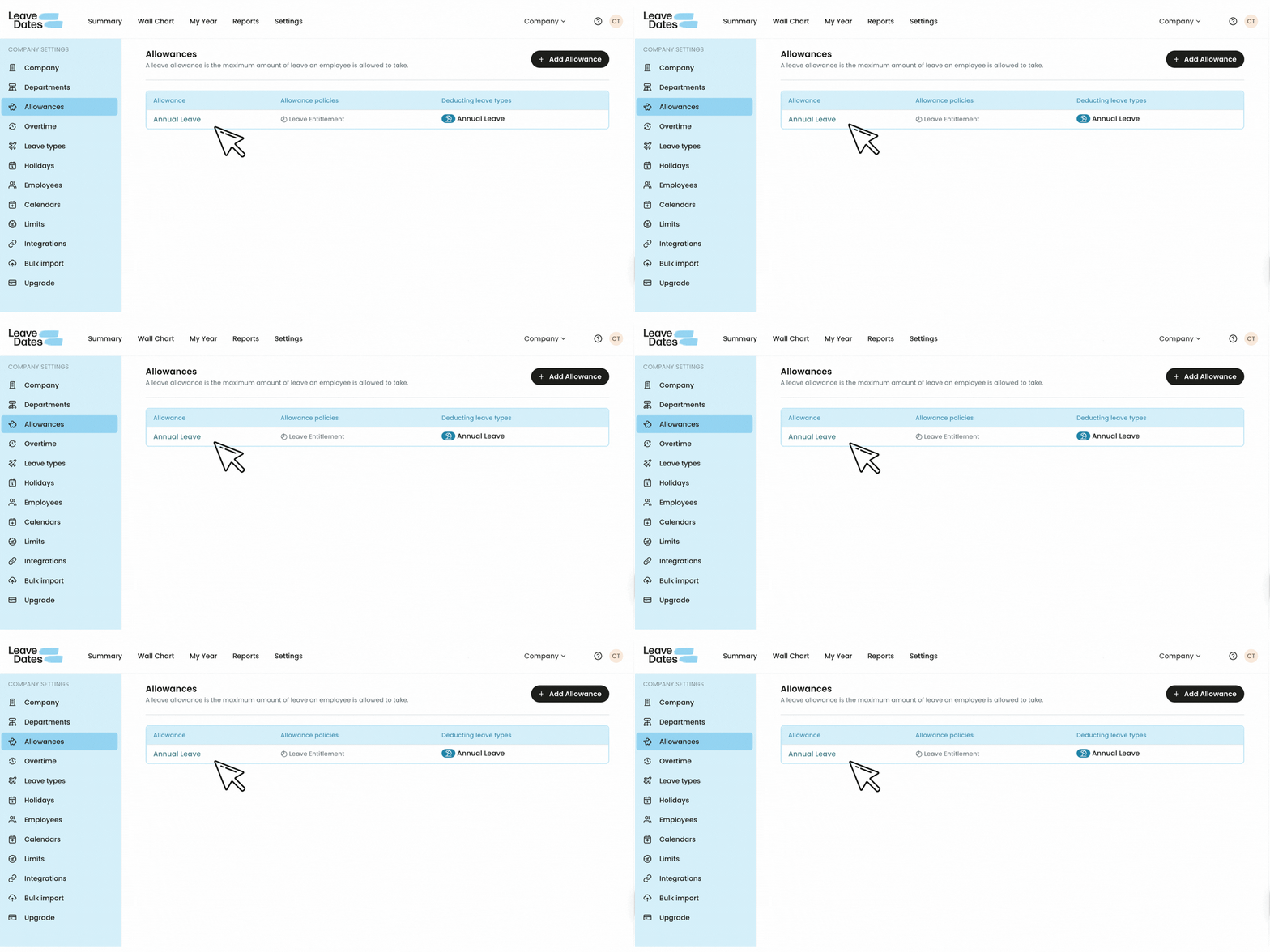
Go to Settings Allowances

Then select the allowance type (e.g., Annual Leave) you want to carry over.

Carry over step 1

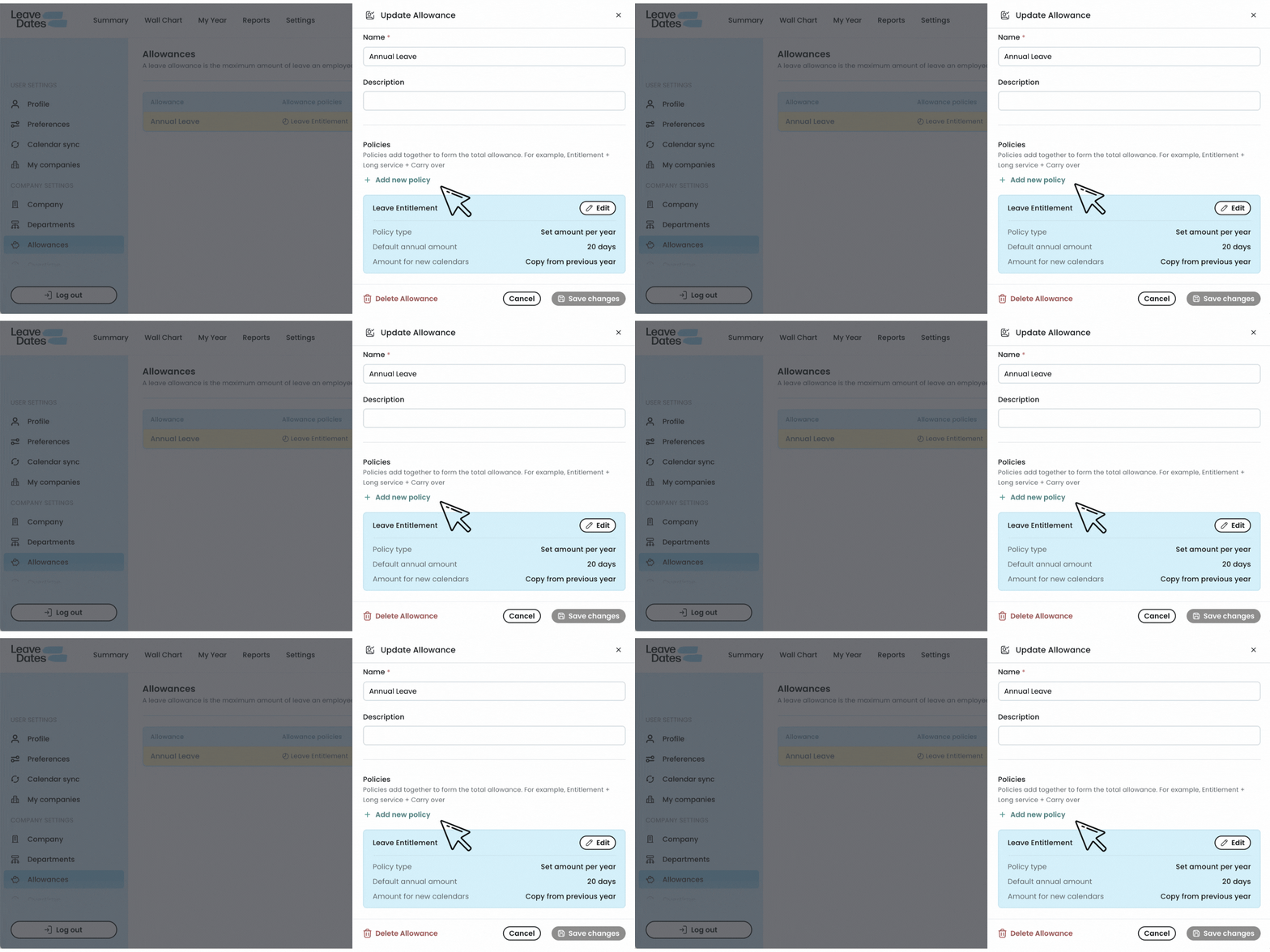
Go to Policies → "+ Add new policy" to create a carry over policy for your leave type (e.g. Annual Leave).

Carry over step 2

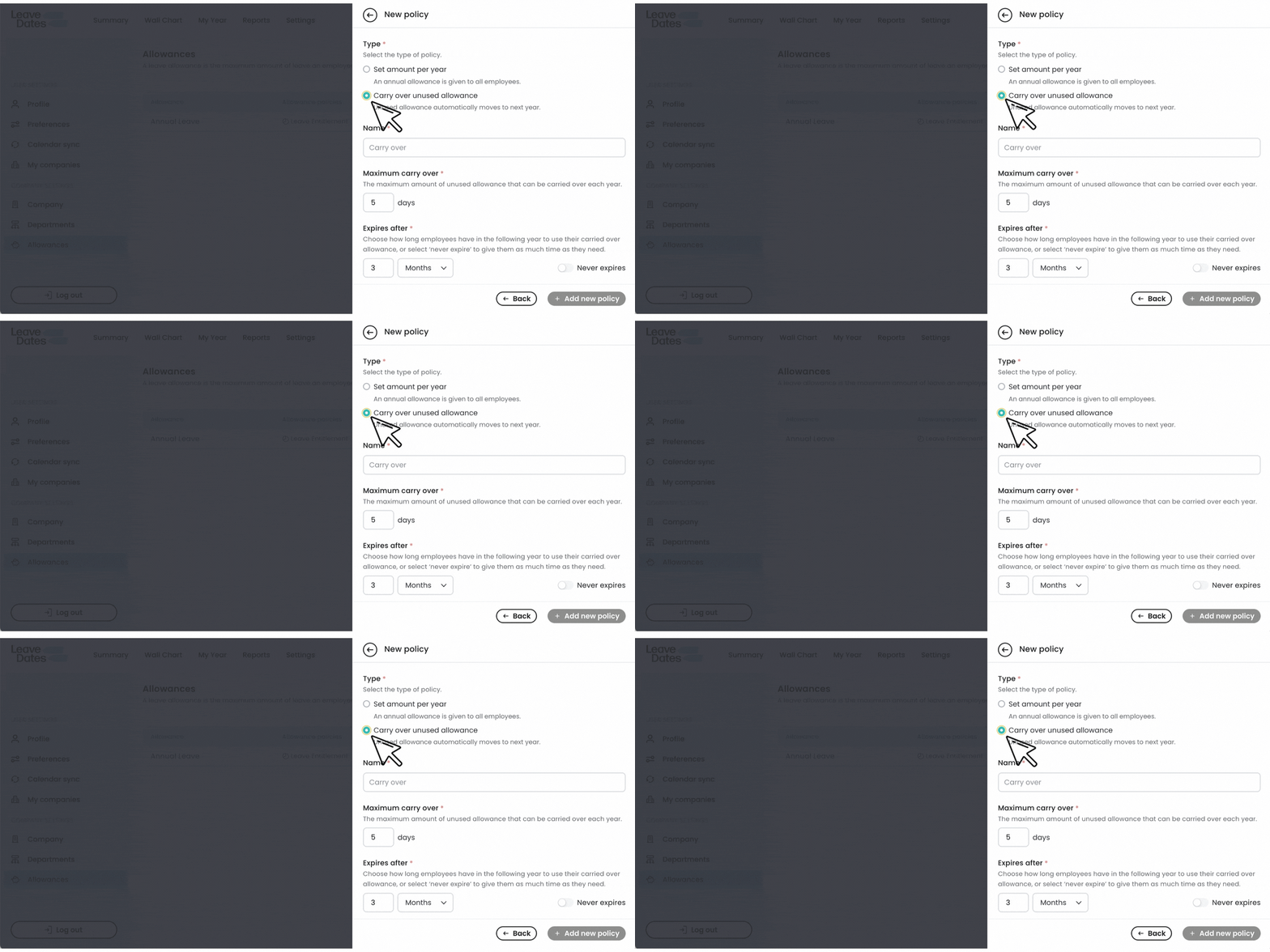
Click Carry over unused allowance → name your policy → set the maximum carry over and expiry

Hit + Add new policy and voila! Your carry over policy is set!

Carry over step 3

Scenario: Tony dodges a December admin disaster

Tony runs a busy garage with 15 staff. By mid-December, he notices that four employees have more than 3 days of unused leave. They’ve worked hard all year, and Tony wants to treat them fairly; without shutting the business down. 

In previous years, Tony handled it in spreadsheets: 

  • Checking who had what left
  • Recalculating allowances
  • Manually adjusting balances
  • Rolling days into the new year 

One year, a miscalculation meant an apprentice lost leave, which was only spotted later. 

That was the final straw. 

This time, Tony sets a clear carry-over policy in Leave Dates. The system applies the rules automatically, and everyone starts the new leave year with the correct balance. No spreadsheet headaches.

Features 2

The bottom line

A clear carry-over policy plus automation helps you:

✔️ Protect eligible unused leave at year-end

✔️ Save hours of manual admin

✔️ Keep records accurate and fair across the team

It’s one more way Leave Dates makes leave management simpler for managers, admins and employees.

Set up carry over today.

Take the stress out of year-end leave, set up your carry over policy on any Leave Dates subscription.

  • 30-day free trial
  • No credit card needed
  • Cancel any time

Frequently asked questions

Yes - if your company policy allows it, employees can carry leave over. Also, UK rules can allow (and in some situations require) carry over, for example, where leave couldn’t be taken due to certain types of absence. If you’re unsure, check your policy and get appropriate HR/legal advice.

That’s up to the employer’s policy (within applicable rules). A common approach is something like: 

  • Maximum 5 days carried over
  • Must be used within 3 months (eg. by 31 March) 

This is easy to set up in Leave Dates, and the system applies the rules automatically.

If your policy sets an expiry deadline, any carried-over leave will lapse after that date. With Leave Dates, balances update automatically based on the rules you set. No manual recalculation is needed.

Yes, you can manually override the system-calculated values. You can also lock the values to prevent Leave Dates from recalculating on the first day of the year.